1. Download the correct firmware bundle from epicEFI firmware,
you might also need the drivers: silent_st_driver2.exe. These are included in the bundle, here for convenience
2. Extract the bundle to a folder on your computer
3. Open this page in a web browser
4. Connect the ECU to your computer via USB
5. Put the ECU into DFU mode via one of two methods below, Over Serial or manually
Reboot to DFU over serial:
1. Disconnect Tunerstudio
2. Click "Connect" below
3. Click "Identify ECU" to get ECU info
4. Click "Reboot DFU" to reboot ECU into DFU mode
5. Proceed to DFU section.
DFU manually:
1. Unplug USB
2. Hold down PROG or BOOT button on ECU
3. Plug USB in
DFU Flash:
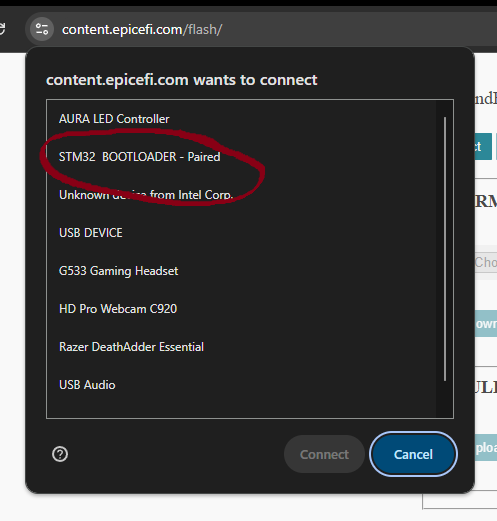
1. Click "Connect to DFU"
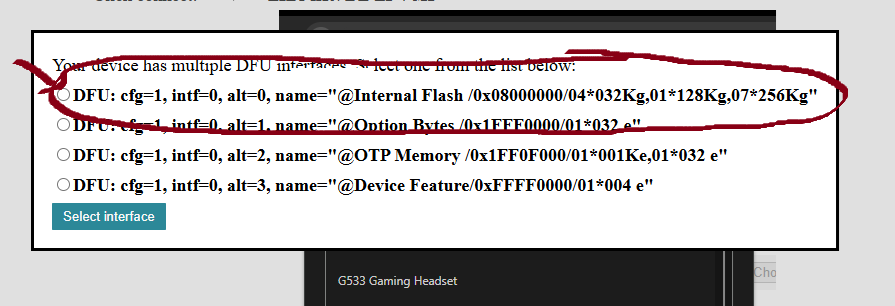
2. Select the correct interface "@Internal Flash /0x08000000/" or something similar, should be the first one.
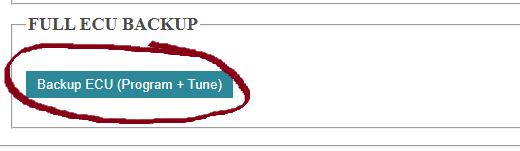
3. Click "Download ECU Backup" to save current ECU program and tune
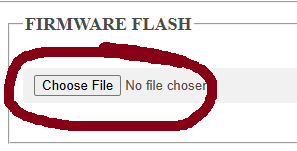
4. Click "Choose File" to select firmware file - pick rusefi.bin from the bundle you downloaded and extracted
5. Click "Write new firmware" to flash the ECU with the new firmware
6. Click "Disconnect" to disconnect from the ECU
7. Power cycle the ECU
8. Connect to Tunerstudio and verify the firmware version, and update the ECU definition. There is a new definition for the epicEFI ECU in the bundle you downloaded and extracted.
Write New Firmware to ECU:
Instructions:
Put device into DFU mode, hold down PROG or BOOT while plugging USB in.
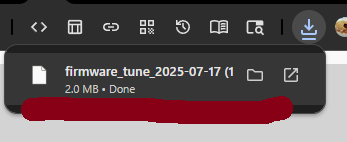
Click connect: Pick STM32 Bootloader: Pick Correct partition: Take a full backup of the ECU, this will save the program and the tune: The file will tranfser to your browser, you can use this file to restore the ECU Pick the correct firmware file: